


MEgo View User Manual
Preface
We sincerely thank you for purchasing the MEgo View data acquisition terminal (hereinafter referred to as "View"). MEgo View is a MultiModal Machine Learning Data Acquisition device, consisting of MEgo Ego and MEgo Wrist, which provides data from the First-Person Perspective and wrist perspective. Targeting all individuals, teams and companies interested in robot-free ontology acquisition data, we aims to provide customers with standardized, high-quality and MultiModal Machine Learning human operation datasets.
This manual details the installation, operation, and maintenance of View. Please read this manual carefully before use and follow the operating instructions to avoid equipment damage or data loss caused by improper operation.
Operations may vary slightly across different product versions. This user manual is intended for end-user reference only. You may also scan the QR code to obtain the latest edition of the User Manual. If you encounter any issues not covered in this document during use, please contact our after-sales service for support.
Service and Support
Scan the QR code or visit the link below to access the latest operating instructions, tutorial videos, and download the APP.

© All Rights Reserved. Unauthorized copying and distribution prohibited.
Safety Information
Please read all instructions in this manual carefully and comply with all requirements before operating this product. Procedures may vary across product versions. This manual is for end-user reference only. Our company reserves the right to modify and interpret the content of this manual.
Electrical Safety
- Suggest to use batteries supplied or approved by Our company. We are not responsible for device failures or accidents resulting from the use of unauthorized batteries.
- Disconnect the battery from the power adapter promptly once charging is complete.
- If the device exhibits overheating, unusual odor, smoke, or any other abnormal condition during charging, disconnect the power immediately, stop using the device, and contact customer support. Do not attempt to disassemble or repair the device yourself.
Usage Safety
- View is not waterproof. Do not submerge the device in water or allow liquids such as rain, sweat, or beverages to contact its surfaces or ports.
- Use this product only within the specified ambient temperature range of 0 °C to 45 °C.
- Do not disassemble or modify the device without authorization. We are not responsible for device failures or abnormal operation resulting from unauthorized disassembly.
- This product is a professional data acquisition device. Users without prior operating experience must read this manual thoroughly before use.
Product Overview
Equipment Usage
MEgo Ego used alone

MEgo Ego + MEgo Wrist

MEgo Ego + MEgo Gripper

Packing List
MEgo View Product Package

MEgo View Product Package
- MEgo Ego Head-mounted Device x 1
- MEgo Ego Battery x 2
- Power Adapter x 1
- High-speed TF Memory Card, 256GB x 1
- Type-C Data/Charging Cable(C-C)x 1
- TF Card Reader x 1
- Operation Guide Card x 1
- Certificate of Conformity x 1
- Warranty Card x 1
- Carrying Case x 1
MEgo Wrist Optional Package

MEgo Wrist Optional Package
- MEgo Wrist Wristband Device x 2
- MEgo Wrist Battery x 4
- High-speed TF Memory Card, 128GB x 2
- Type-C Data/Charging Cable(C-C)x 1
- Type-C Data/Charging Cable(C-A)x 1
Component Introduction
MEgo Ego


MEgo Ego
- Power Button
- Type-C Port
- TF Card Slot
- Record Button
- Fisheye Camera
- Headband
- Rear Liner
- Status Indicator Light
- Stereo Camera
- Side Tie Strap
- Volume +/- Button
- Microphone
- Battery Indicator Light
- Detachable Magnetic Battery
- Forehead Liner
- Loud speaker
MEgo Wrist


MEgo Wrist
- Status Indicator Light
- Wide-angle Camera
- Type-C Port
- Wrist Strap
- Power Button
- Record Button
- Detachable Battery
- Battery Indicator Light
- Battery Compartment Cover
- TF Card Slot
First Use
Unboxing Inspection
- Open the product packaging and remove all components.
- Verify that all items are present and match the Packing List.
Battery Installation
MEgo Ego
- The battery is magnetic quick-swap design, align the battery's P port with the device's P port and bring it close to the device, and the battery will automatically snap into place.
- Ensure the battery is securely installed. Reinstall if misaligned.

MEgo Wrist
- Battery compartment is located on the back of the device. Slide the compartment cover sideways to open it, and push the battery all the way in.
- Close the cover and press gently until you hear a “click” to confirm it is fully locked.

TF Card Installation
MEgo Ego
- The TF card slot is on the back of the device.
- Insert the TF card in the specified direction.

MEgo Wrist
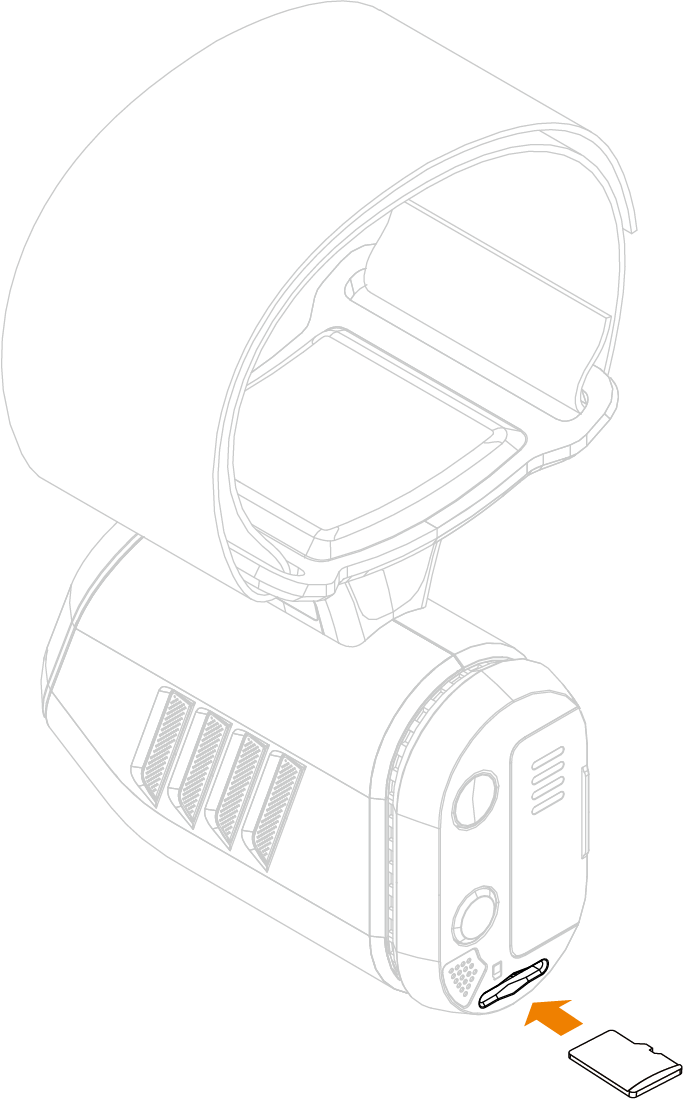
- The TF card slot is on the back of the device.
- Insert the TF card in the specified direction.
Power On / Off
MEgo Ego
- The power button is on the rear; the status indicator is on the front.
- Press and hold the power button for 5 seconds to power on. The indicator lights up, and the device enters standby mode.
- While powered on, press and hold the power button for 5 seconds to power off. The indicator turns off.

MEgo Wrist
- The power button is on the rear; the status indicator is on the front.
- Press and hold the power button for 5 seconds to power on. The indicator lights up, and the device enters standby mode.
- While powered on, press and hold the power button for 5 seconds to power off. The indicator turns off.

Battery Replacement
Ego
- Make sure the device is powered off.
- Remove the old battery and attach a new one.
Wrist
- Make sure the device is powered off.
- Open the battery compartment cover and remove the old battery.
- Insert a new battery and push it all the way in.
- Close the cover and press gently until you hear a “click” to confirm it is fully locked.
Charging the Battery
- Remove the battery from the devices.
- Connect the battery to the power adapter using the supplied cable.
- The included power adapter can charge up to 3 batteries simultaneously.
- Disconnect the battery once charging is complete.

Operation
Wearing Standard and Collection Specification
Wearing Standards
MEgo Ego
- Wear the device on your head, adjust the straps on the left and right sides to ensure the device is worn stably without loosening or shaking.
- Make sure the lower edge of the device is aligned with your eyebrows, with a small part of the device visible within your field of view; The device should be worn symmetrically and horizontally on both sides.
- After putting it on, check yourself in the mirror to make sure you are wearing it correctly.

MEgo Wrist
- Wear the device on your wrist, adjust the strap position to ensure that the device is worn securely without loosening or wobbling.
- Device wearing position: two fingers away from the wrist, with the camera facing the palm

Collection Specifications
- During the collection process, keep your head as steady as possible and avoid large-angle shaking.
- Keep your head slightly tilted during the collection process.
Data Recording
① MEgo Ego (used alone)
Note:
Network connection is not necessary when MEgo Ego is used alone.
You need to perform the "device network connection" operation via the APP. For details, please refer to the APP Operation Instructions section.
- Make sure the device is powered on.
- Press the "Record" button on the MEgo Ego, or make a thumbs-up gesture with both hands in front of your chest, and the device will start recording.
- After recording is triggered, keep stationary for 3 seconds, and start data collection upon hearing the voice prompt "Recording started".
- After the completion of Data Acquisition, press the "Record" button on the host again or make a thumbs-up gesture with both hands in front of your chest, and all devices will synchronously stop recording.
② MEgo Ego + MEgo Wrist
Note:
Before recording, the devices must connect Wi-Fi and be paired with the APP. Refer to the APP Instructions section for the full pairing procedure.
During the collection process, the device needs to keep network connection.
- Power on all devices, and ensure all devices are paired.
- Press the "Record" button on the MEgo Ego(Master), or make a thumbs-up gesture with both hands in front of your chest. All paired devices will simultaneously start recording.
- After recording is triggered, keep the device stationary for 3 seconds, when hear "start recording", you can start data collection.
- When the session is complete, press the "Record" button on the MEgo Ego(Master) , or make a thumbs-up gesture with both hands in front of your chest again. All devices will stop recording.
③ MEgo Ego + MEgo Gripper
Note:
Before recording, the devices must connect Wi-Fi and be paired with the APP. Refer to the APP Instructions section for the full pairing procedure.
During the collection process, the device needs to keep network connection.
- Power on all devices, and ensure all devices are paired.
- Press the "Record" button on the MEgo Ego(Master), or quickly squeeze both grippers simultaneously twice. All paired devices will simultaneously start recording.
- After recording is triggered, keep the device stationary for 3 seconds. When hear "start recording", you can start data collection.
- When the session is complete, press the "Record" button on the MEgo Ego(Master) , or quickly squeeze both grippers simultaneously twice again. All devices will stop recording.
Data Upload
The device supports two methods to transfer recorded data:
Method 1 — TF Card Transfer Remove the TF card from the device, use the supplied TF card reader to copy data to a computer or local server.

Method 2 — APP Upload Use the APP to trigger data upload, recorded data directly upload to the MEgo Engine platform over Wi-Fi.
APP Instructions
Connect the device
Open the "Mani Go" APP, follow the on-screen instructions to select the device combination, and then scan the QR codes on the device SN code stickers in sequence.
Configure the device's Wi-Fi
Bluetooth pairing
In the initial state, the device displays an "Offline" status, and there is no "Bluetooth" or "Wi-Fi" icon on the device card.

Wait for about 30 seconds, and pop-ups for Bluetooth pairing will appear on the APP page in sequence, then tap the "Pair" button.
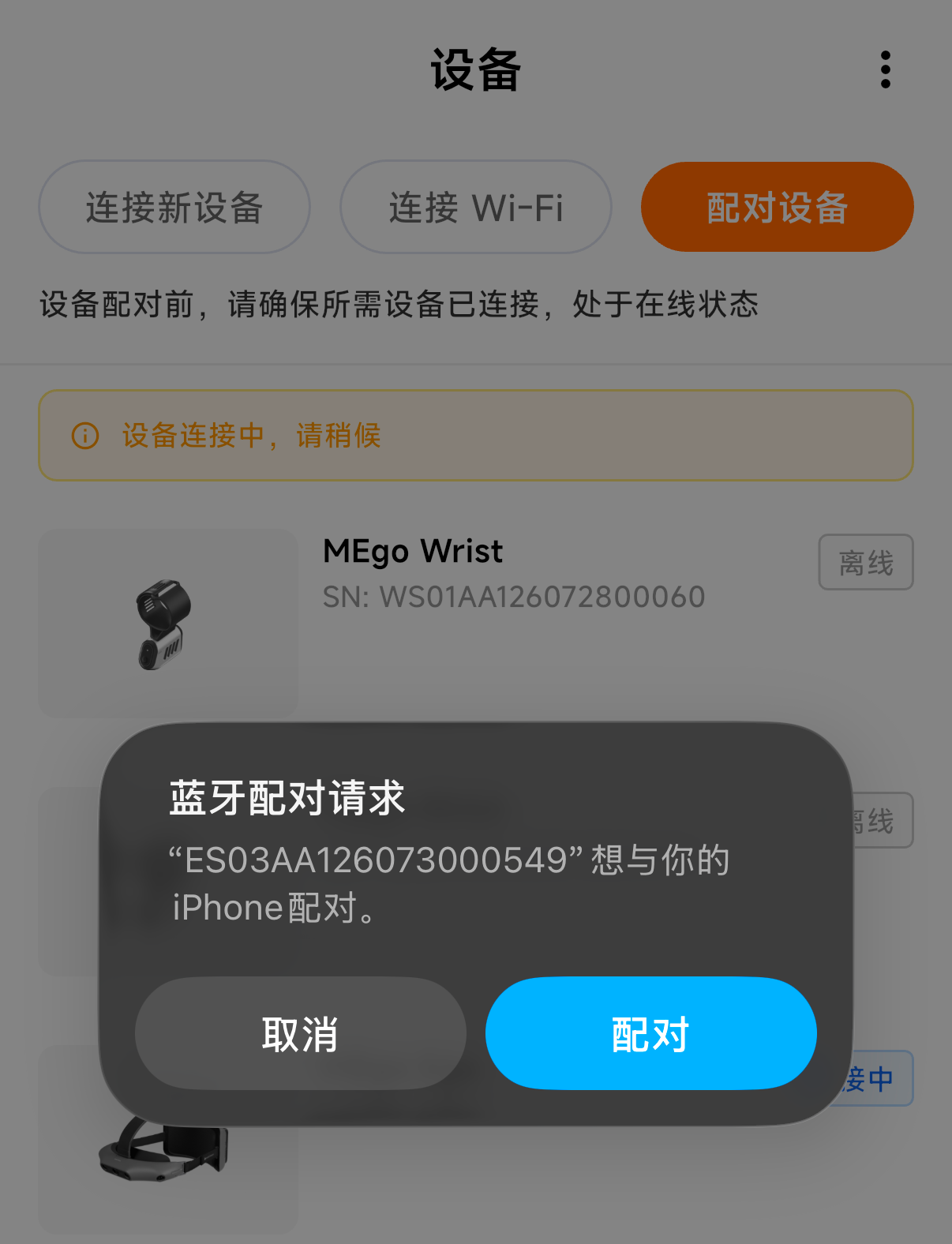
After successful pairing, the device will display an "Online" status, and the Bluetooth icon will appear on the device card.

Configure Wi-Fi information
Click the "Bluetooth Network Configuration" button at the top of the page to enter the Wi-Fi selection page

Select a Wi-Fi network and enter its password

After a successful connection and a few seconds of waiting, the device will show an "Online" status, and the "Wi-Fi" icon will appear on the device card.

Device Pairing
Click the "Device Pairing" button

After performing the "device pairing" operation, the device will automatically restart, and the device card will briefly show the "offline" status. Please wait for 20-30 seconds at this point.

Status Indicator Light Guide
MEgo View uses status indicator lights to show the device's current operating status:
Power On/Off and Standby
Device Status | Indicator Light | Status Description and Recommended Action |
Power-on Self-check | Blue light flashing rapidly | The device is starting. Please wait for the self-check to complete.
|
Standby | Solid white light | The device is ready for configuration or data recording. |
Sleep | Pulsing white light | The device is in low-power mode and can be awakened by operating it. |
Powered off | Blue light flashes rapidly three times, then turns off. | The device is fully powered off when the indicator light turns off. |
Device Connection
Device Status | Indicator Light | Status Description and Recommended Action |
Bluetooth connecting | Green light flashing slowly | The mobile app is connecting to the device. Please wait. |
Bluetooth connected | Solid white light | The device returns to standby mode. |
Data Recording and Upload
Device Status | Indicator Light | Status Description and Recommended Action |
Recording data | Solid blue light | The device is recording data. Do not remove the TF card. |
Uploading data | Blue light flashing slowly | Data is being uploaded. Do not power off the device or disconnect the network. |
System Operations
Device Status | Indicator Light | Status Description and Recommended Action |
Formatting the TF card | White light flashing rapidly | Do not power off the device or remove the TF card. |
OTA update in progress | White light flashing slowly | Do not power off the device, disconnect power, or remove the battery. |
Restoring factory settings | White light flashing rapidly | Wait for the operation to complete. Do not power off the device during this process. |
Abnormal Status
A red status indicator light may indicate a time synchronization error, sensor error, or TF card error. Follow the relevant voice prompts and inspect the device promptly.
Open Port Information
Port | Service | Function |
|---|---|---|
139 | SMB | NetBIOS session service |
445 | SMB | SMB over TCP |
554 | MediaServer | RTSP stream pushing and pulling |
4222 | nats-server | Default NATS client connection port |
7081 | MediaServer | ZLM’s built-in HTTP service for communication with devices |
Maintenance and Care
Device Care
- Clean camera lenses regularly using a clean, dry, lint-free cloth.
- Inspect camera lenses periodically for scratches or contamination that may affect data quality.
Data Management
- Upload the data in time to prevent data loss from accidental deletion or card failure.
Caution: If you need to format the TF card, please ensure that all important data has been uploaded or backed up. Formatting will permanently erase all stored data.
Firmware Upgrade
- Firmware upgrades are performed via the APP. When a new firmware update is available, a notification will appear in the app — tap it and follow the instructions to complete the upgrade.
- Before upgrading, ensure the device battery is sufficiently charged and that the device is connected to a stable Wi-Fi network.
Caution: If the firmware upgrade fails, contact our after-sales support team. Do not manually restart the device during the upgrade, to avoid device abnormalities or firmware damage.
Put the World’s Data to Work for AI and Accelerate the Arrival of the Intelligent Agent Era.
We Look Forward to Standing with You, Deepening Data Collection, and Building the AI Future Together.
Scan the QR code to follow our official WeChat account for more product information and official partnership opportunities.


